Pages - Menu

Pages

Wednesday, 30 January 2013

Complete Banking Details By Somashekar

Banking By Somashekar (mandkstores.blogspot.in)

Banking By Somashekar (mandkstores.blogspot.in)
Free Download
CONTENTS
CHAPTER -1: COMMERCIAL BANKING 1-26
INTRODUCTION 1
Meaning 1
Definition of a Bank 1
TYPES OF BANKS 2
FUNCTIONS OF COMMERCIAL BANKS 4
SOURCES OF BANK'S INCOME 9
INVESTMENT POLICY OF BANKS 10
BALANCE SHEET OF THE BANK 12
Liabilities 12
Assets 14
CREDIT CREATION 15
Basis of Credit Creation 15
Process of Credit Creation 16
Leaf and Cannon Criticism 18
Limitation on Credit Creation 18
UNIT BANKING VS BRANCH BANKING 20
A. Unit Banking 20
B. Branch Banking System 22
COMMERCIAL BANKS AND ECONOMIC DEVELOPMENT 24
Conclusion 26
CHAPTER-2: CENTRAL BANKING 27-45
INTRODUCTION 27
Meaning of Central Bank 27
Definition of Central Bank 27
Functions of the Central Bank 28
CREDIT CONTROL 31
Objectives of Credit Control 32
Methods of Credit Control 32
Meaning 33
Theory of Bank Rate 33
Working of Bank Rate 34
The Process of Bank Rate Influence 34
Bank Rate Under the Gold Standard 34
Conditions for the Success of the Bank Rate Policy 34
Limitations 35
Meaning 36
Theory of Open Market Operations 36
Objectives of Open Market Operations 37
Conditions for the Success of Open Market Operations 37
Popularity of Open Market Operations 38
A. Variable Cash Reserve Ratio 39
Meaning 39
B. Theory of Variable Reserve Ratio 39
Working of Variable Reserve Ratio 40
Limitations 41
Selective or Qualitative Methods 41
Objectives 42
Measures of Selective Credit Control 42
Conclusion 45
CHAPTER-3: RESERVE BANK OF INDIA 47-75
INTRODUCTION 47
Capital 48
Organisation 48
Offices of the Bank 49
Departments of the Reserve Bank 50
Functions of the Reserve Bank 51
CREDIT CONTROL 58
Weapons of Credit Control 58
METHODS OF SELECTIVE CREDIT CONTROLS ADOPTED BY RESERVE BANK 61
Limitations of Selective Controls in India 63
MONETARY POLICY OF THE RESERVE BANK OF INDIA 64
Reserve Bank of India and Monetary Controls 64
Limitations of Monetary Policy 66
Chakravarthy Report on the Working of the Monetary System 67
The Narasimham Committee Report (1991) 68
Recommendations of the Committee 68
The Goiporia Committee Report (1991) 70
Recommendations of Goiporia Committee 70
The Narasimham Committee Report (1998) 71
ROLE OF RBI IN ECONOMIC DEVELOPMENT 71
Contribution to Economic Development 72
Conclusion 75
CHAPTER-4: STATE BANK OF INDIA 77-81
INTRODUCTION 77
Capital 77
Management 77
Functions 78
Role of the State Bank in Economic Development 79
Conclusion 80
CHAPTER-5: MONEY MARKET AND CAPITAL MARKET 83-105
INTRODUCTION 83
Money Market 83
Functions of Money Market 83
Composition of the Money Market 84
Financial Institutions of the Money Market 85
Characteristics of a Developed Money Market 86
Usefulness of a Developed Money Market 87
Structure of the Money Market 88
Characteristics of Indian Money Market 89
Defects of Indian Money Market 89
Measures for Improvement of the Money Market 91
Suggestions to Remove Defects in the Indian Money Market 93
The Repo Market 95
The Commercial Bill Market 96
The Certificate of Deposit (CD) Market 97
The Commercial Paper Market 98
Money Market Mutual Funds 98
Capital Market 99
Classification of Indian Capital Market 99
Importance of Capital Market 100
Functions of Capital Market 100
Structure of Indian Capital Market 101
Components of Indian Capital Market 101
Recent Trends in the Capital Market 102
Comparison of Money Market and Capital Market 104
Conclusion 105
CHAPTER-6: STRUCTURE OF BANKING IN INDIA 107-137
INTRODUCTION 107
1. INDIGENOUS BANKS 107
Meaning 109
Groups 109
Types 109
Functions of Indigenous Bankers 109
Defects of Indigenous Bankers 110
Indigenous Bankers and the Reserve Bank 111
Suggestions for Reform 111
2. MONEYLENDERS 112
Features of Moneylenders 112
Differences Between Moneylenders and Indigenous Bankers 112
Defects of Moneylenders 113
3. CO-OPERATIVE BANKS 113
Meaning 114
Structure of Co-operative Banks 114
Progress of PACS 115
Shortfalls PACS 116
Functions 116
Progress of CCBs 117
Defects of CCBs 117
Functions 118
Defects 118
Progress 118
Present Position of Co-operative Banks 118
Importance or Benefits of Co-operative Banks 119
Problems or Weaknesses of Co-operative Banks 119
Suggestions for the Improvement of the Co-operative Credit Structure 120
4. LAND DEVELOPMENT BANK 121
Sources of Funds 122
The Working of the LDBs 122
Progress 122
Defects 122
Suggestions for Improvement 123
5. REGIONAL RURAL BANKS 123
Objectives of Regional Rural Banks 123
Capital Structure 124
Features of Regional Rural Banks 124
Functions of Regional Rural Banks 124
Progress Achieved by Regional Rural Banks 124
Problems 125
Suggestions for Reorganisation and Improvement 127
6. NABARD 128
Objectives 128
NABARD's Financial Resources 128
Management 128
Functions of NABARD 129
Achievements of NABARD 130
7. COMMERCIAL BANKS 132
Nationalisation of Banks 132
Achievements of Nationalised Banks 132
8. CREDIT CARDS 136
Advantages of Credit Cards 136
Limitations or Drawbacks of Credit Cards 136
Conclusion 136
CHAPTER-7: DEVELOPMENT BANKS 139-158
INTRODUCTION 139
Meaning 139
Features 139
Important Development Banks in India 140
1. INDUSTRIAL FINANCE CORPORATION OF INDIA LTD. 140
Functions of the IFCI 141
Financial Resources of IFCI 141
Lending Operations of IFCI 142
Appraisal of IFCI's Performance 142
2. THE INDUSTRIAL CREDIT AND INVESTMENT CORPORATION OF INDIA LTD. 143
Financial Resources of ICICI 143
Lending Operations of ICICI 143
Appraisal of ICICI's Performance 144
3. STATE FINANCIAL CORPORATIONS 145
4. THE INDUSTRIAL DEVELOPMENT BANK OF INDIA 148
Financial Resources of IDBI 148
Cumulative Assistance by IDBI 148
Composition of Financial Assistance 149
Promotional Functions of the IDBI 150
Critical Appraisal 150
5. SMALL INDUSTRIES DEVELOPMENT BANK OF INDIA 151
Financial Resources of SIDBI 151
Financial Assistance by SIDBI 151
6. THE INDUSTRIAL RECONSTRUCTION BANK OF INDIA (IRBI) 151
7. THE STATE INDUSTRIAL DEVELOPMENT CORPORATIONS (SIDCS) AND THE STATE 151
INDUSTRIAL INVESTMENT CORPORATIONS (SIICS) 152
8. UNIT TRUST OF INDIA 153
Present Position 153
9. LIFE INSURANCE CORPORATION OF INDIA (LIC) 154
Present Position 155
10. THE EXPORT-IMPORT BANK OF INDIA (EXIM BANK) 156
Functions of the EXIM Bank 156
Present Position 156
Conclusion 157
CHAPTER-8: BANKER AND CUSTOMER 159-184
INTRODUCTION 159
Meaning and Definition of a Banker 159
Meaning and Definition of a Customer 161
Special Types of Customers 163
Legal Provisions Regarding Guardianship of a Minor 164
The Banker-Customer Relationship 171
A. General relationship, and B. Special relationship 171
1. Primary relationship 171
2. Secondary relationship 172
Obligations of Bankers 179
1. Obligation to Honour the Customer's Cheques 179
2. Obligation to Maintain Secrecy of Customer's Account 181
3. Obligation to Receive Cheques and Other Instruments for Collection 182
4. Obligation to Give Reasonable Notice before Closing the Account 182
Obligations of Customers 183
Conclusion 183
CHAPTER-9: OPENING AND OPERATING BANK ACCOUNTS 185-196
INTRODUCTION 185
Types of Accounts 185
Procedure of Opening Current and Savings Accounts 189
Forms Used in Operation of Bank Account 191
Closing of a Bank Account 192
Insurance of Bank Deposit 193
Deposit Insurance and Credit Guarantee Corporation (DICGC) 193
Objectives 193
Credit Guarantee Function 193
Nomination Facility 194
Non-Resident Account 195
Recent Development 195
Conclusion 196
CHAPTER-10: PASS BOOK 197-202
INTRODUCTION 197
Meaning of Pass Book 197
Object or Purpose of Pass Book 198
Statement of Account 198
Examination of Entries 198
Legal Position of Entries in the Pass Book 199
Effect of Entries in the Pass Book 199
Precautions in Writing a Pass Book 201
Conclusion 202
CHAPTER-11: CHEQUES 203-220
INTRODUCTION 203
Meaning 203
Definition 204
Essentials 204
Types of Cheques 205
Uses of a Cheque 206
Advantages of Using Printed Forms 206
Parties to a Cheque 207
MATERIAL ALTERATIONS 207
Alteration 207
Material Alteration 207
Examples of Material Alterations 207
Examples of Authorised Alterations 208
Examples of Non-material Alterations 208
Effects of Material Alteration 208
CROSSING OF CHEQUES 209
Meaning of Crossing 209
Types of Crossing 209
Special Crossing 210
Other Types of Crossing 211
Significance of Crossing 212
ENDORSEMENT 213
Definition of Endorsement 213
Essentials of a Valid Endorsement 213
Kinds of Endorsement 214
Legal Effects of an Endorsement 215
Differences Between a Bill of Exchange and Cheque 215
Distinguish Between a Cheque and a Promissory Note 216
HOLDER AND HOLDER IN DUE COURSE 217
Holder 217
Holder in Due Course 217
Privileges of a Holder in Due Course 218
Distinction Between Holder and Holder in Due Course 219
Conclusion 220
CHAPTER-12: THE PAYING BANKER 221-229
INTRODUCTION 221
Meaning 221
Precautions for Payment of Cheques 222
Precautions 222
Statutory Protection 225
Protection Available Under the Negotiable Instruments Act 225
Dishonour of Cheques 227
When a Banker can Dishonour Cheques 228
Bank's Remarks on Dishonoured Cheques 229
Conclusion 229
CHAPTER-13: COLLECTING BANKER 231-238
INTRODUCTION 231
Meaning 231
Collecting Banker as Holder for Value 231
Collecting Banker as an Agent of the Customer 232
Conversion 233
Statutory Protection to Collecting Banker 233
Duties and Responsibilities of a Collecting Banker 235
Marking of Cheque 236
Who Can Get the Cheque Marked? 236
Conclusion 237
CHAPTER-14: LOANS AND ADVANCES 239-247
INTRODUCTION 239
General Rules of Sound Lending 239
Forms of Lending (Advances) 241
Merits of Granting Loans 242
Demerits 242
Merits of Cash Credit 243
Demerits 243
Distinction Between Loan and Cash Credit 244
Distinction Between Cash Credit and Overdraft 244
Types of Loans and Advances 245
Determining Creditworthiness 246
Sources of Credit Information 246
Conclusion 247
CHAPTER-15: TYPES OF SECURITIES 249-268
INTRODUCTION 249
Characteristics of Good Security 249
General Principles of Secured Advances 250
Types of Securities on which Loans or Advances can be Granted 251
Precautions 257
Merits of Advances Against Stock Exchange Securities 258
Risks in Advancing Against Securities 259
Precautions to be Taken in Advancing Against Securities 259
Precautions in Advancing Against Real Estate 262
Merits of Life Insurance Policy as a Security 264
Demerits of Policies as Securities 264
Precautions in Advancing Against LIC Policies 265
Precautions in Advancing Against Fixed Deposit Receipt 266
Precautions in Advancing Against Book Debts 267
Conclusion 268
CHAPTER-16: MODES OF CREATING CHARGE 269-280
INTRODUCTION 269
Modes of Creating Charge 269
Difference Between Pledge and Lien 270
Who can Pledge the Goods? 271
Right and Obligations of Pledger 272
Rights 272
Obligations (Duties) 272
Right and Obligations of Pledgee or Pawnee 272
Obligation and Duties of Pledgee 273
Essential Features of a Mortgage 273
Types of Mortgages 274
Legal and Equitable Mortgage 276
Merits of Equitable Mortgage over the Legal Mortgage 276
Demerits of Equitable Mortgage over the Legal Mortgage 276
Rights of Mortgager 277
Rights of Mortgagee (Banker) 277
Precautions to be Taken by a Banker in Case of Lending Against Hypothecation 278
Conclusion 279
CHAPTER-17: GUARANTEES 281-291
INTRODUCTION 281
Meaning 281
Definition 281
Necessity for Bank Guarantee 282
Essentials of a Valid Guarantee 282
Kinds of Guarantees 283
Contract of Guarantee 285
Purpose of the Contract 286
Contract of Indemnity 286
Parties to Indemnity 286
Analysis of the Definition 286
Difference between Contract of Guarantee and a Contract of Indemnity 287
Rights of the Surety 287
Liability of the Surety 288
Rights of the Banker 288
Liabilities of the Banker (Obligation) 288
Merits and Demerits of Guarantee 289
Merits of Guarantee 289
Demerits of Guarantee 289
Precautions to be Taken by the Banker in a Contract of Guarantee 290
Conclusion 291
CHAPTER-18: LETTER OF CREDIT 293-300
INTRODUCTION 293
Definition 293
Types of Letters of Credit 294
I. Travellers' Letter of Credit 295
II. Commercial Letter of Credit 296
Types of Letters of Commercial Credit 296
Opening a Letter of Credit 298
ADVANTAGES OF LETTER OF CREDIT 299
Advantages to the Exporter 299
Advantages to the Importer 299
Conclusion 300
CHAPTER-19: ACCOUNTS AND AUDIT OF BANKS 301-309
INTRODUCTION 301
Salient Features of Bank's Accounts 301
Books of Account (Section 209) 302
Books shall Give a True and Fair View 302
Preservation of Books 302
Persons Responsible to Keep the Books 302
Penalty 302
Inspection of Books of Account 303
Books to be Maintained 303
Final Accounts 306
Preparation of Balance Sheet and Profit and Loss Account (Sec. 47) 306
Form of Balance Sheet and Profit and Loss Account 306
Signing of Balance Sheet and Profit and Loss Account 306
Audit of Bank Accounts 306
Audit of Accounts (Section 30) 306
Publication and Filing of Accounts (Section 30) 307
Penalty 309
Conclusion 309
MULTIPLE CHOICE QUESTIONS WITH ANSWERS 311-358
--
--- m&k ---

Banking and General Awareness A complete guide to prepare banking awareness IBPS CWE

Banking and General Awareness A complete guide to prepare banking awareness IBPS CWE

Banking and General Awareness A complete guide to prepare banking awareness IBPS CWE
Free Download
Contents
Indian Banking Industry: Emerging Trends 1
Financial Literacy in India 9
Economic Survey to have special chapter on financing 18
of climate change
Bankrolling the banks 19
BANK EXAMS GENERAL AWARENESS PRACTICE 21
QUESTIONS
RBI releases Mid Quarter Monetary Policy Review 33
BANK EXAMS GENERAL AWARENESS MCQs 40
Crisis management group for financial markets on 50
cards
IBPS CLERKS EXAM GENERAL AWARENESS 52
MODEL PAPER
IBPS CWE GENERAL AWARENESS MODEL PAPER 67
Equip ATMs to accept cash directly, suggests panel 78
IRDA launched Two Online Initiatives to Safeguard the 81
Interest of Insurance-seekers
GENERAL KNOWLEDGE PRACTICE MCQs 83
Market Capitalization of all 24 Listed Public Sector 94
Banks below that of 15 Listed Private Banks
Corp Bank scheme for Kerala Govt employees 96
BANKING AWARENESS MCQs 97
IBPS CWE GENERAL AWARENESS MODEL PAPER 105
NABARD signed MoU with All Cooperative Banks in 123
Punjab to Launch Core Banking Solution
Indian Bank launched e-banking Lounge & Inter-bank 124
Mobile Payment Services
K. S. Sreenivasan appointed non-official director on 125
board of Oriental Bank of Commerce
Fresh Capital to be infused in SBI to help it achieve 126
Compliance with Capital Adequacy Ratio Norms
Ratings Firm Moody's downgraded Indian Banking 127
System's Rating outlook from Stable to Negative
IBPS CWE GENERAL AWARENESS MODEL 128
SOLVED PAPER
IBPS CWE GENERAL AWARENESS MODEL 145
SOLVED PAPER
IBPS CLERKS GENREAL AWARENESS MODEL 162
PAPER
IBPS BANKING AWARENESS PRACTICE MODEL 180
PAPER
IBPS BANKING AWARENESS PRACTICE 198
QUESTIONS
SBI Associate Banks Probationary Officers Exam., 205
2011
GENERAL AWARENESS MODEL QUESTIONS 222
Women use their debit cards less frequently, reveals 231
RBI survey
Customer service slips in public sector banks 233
Regional rural banks see healthy growth in saving bank 236
deposits
SBI, ICICI Bank lead peers in global branch network 238
GENERAL AWARENESS MCQs FOR BANK EXAMS 240
IBPS GENERAL AWARENESS MCQs 252
IBPS GENERAL AWARENESS PRACTICE MODEL 267
QUESTIONS
Moody's cuts outlook on Indian banking system to 278
negative
Taxation system in India 281
Overview of Indian Financial System 288
Financial System in India 297
STOCK EXCHANGE, COMMODITY EXCHANGE 300
RELATED TERMS
IBPS CLERKS EXAM GENERAL STUDIES 311
PRACTICE QUESTIONS
Human Development Report 2011 329
GENERAL AWARENESS MCQs FOR BANK EXAMS 345
IBPS GENERAL AWARENESS SOLVED QUESTIONS 365
IBPS GENERAL AWARENESS PRACTICE 376
QUESTIONS
IBPS GENERAL AWARENESS MCQs 393
BANKING & FINANCIAL TERMS 407
BANKING TERMINOLOGY 425
FINANCIAL & BANKING AWARENESS MCQs 445
--
--- m&k ---

Add 2-step verification to your gmail account

Add 2-step verification

These articles are for Google Apps Administrators. End users should see About 2-step verification.

2-step verification adds an extra layer of security to your users' Google Apps accounts by requiring them to enter a verification code in addition to their username and password, when signing in to their account.

The Google Apps Service Level Agreement does not apply to any services used in connection with 2-step verification if the verification process relies on third-party voice or data providers to deliver the verification code.

Why should I enable 2-step verification for my domain?

2-step verification helps protect a user's account from unauthorized access should someone manage to obtain their password. Even if a password is cracked, guessed, or otherwise stolen, an attacker can't sign in without access to the user's verification codes, which only the user can obtain via their own mobile phone.

Requirements

Note: If you're an API developer using ClientLogin authentication, read API Developers before enrolling in 2-step verification.

How it works

  1. You enable 2-step verification for your domain in your Google Apps control panel. SeeSetup 2-step verification for your domain for how to enable 2-step verification for your account. We recommend that you notify your users of this new security process and include instructions on how to get started.

    Note: Although users must opt-in to 2-step verification themselves, you may require them to do so by enforcing the setting on the Settings > Security tab. Do not make this change until all users have opted in, or they will be locked out of Google Apps. See theEnforcement article for instructions.
     
  2. The user enrolls in 2-step verification, and selects the method for receiving their verification code on their mobile phone: the Google Authenticator app, text message, or phone call. How quickly they get their code via text message or phone call depends on their service provider and location. We recommend users with smartphones to use theGoogle Authenticator app which can generate codes without a network connection.

    See Set up 2-step verification for your Google Account.

    • If this link doesn't take you to the 2-step verification page, you need to follow these steps:

      1. Sign in to your Google Apps Gmail Account and click Settings (in the top right corner).
      2. Under the Accounts tab, click Google Account settings.
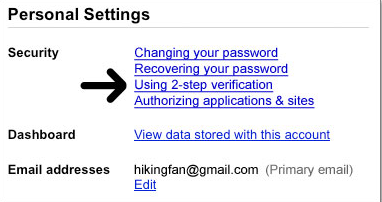
      3. Under Security, click Edit next to 2-step verification.
      4. Follow the steps in the 2-step verification guide to set up 2-step verification.

    Administrators can point users to Getting started with 2-step verification for step-by-step instructions.
     
  3. The next time the user signs in to their Google Apps account on a new browser or device, they enter their username and password as usual. They're then prompted with a second page to enter a verification code. When your user checks Remember verification for this computer, they're only prompted to enter a verification code once every 30 days per browser or after deleting their browser's cookies. Your users should not check this if they're at a public or shared computer.


  4. Depending on how they opted to receive their code, the user gets their time-based, one-time code from the Google Authenticator app on their smartphone or via text message or phone call. They then enter the code to successfully sign in.

Signing in to mobile devices with application-specific passwords

Once your users enroll in 2-step verification, they may need to use application-specific passwords in addition to their verification codes. For installed applications that don't have a 2-step verification field, your users will need to enter an application-specific password once per device or application in place of their regular password to access their Google Account.

Common devices and applications that require application-specific passwords are: Gmail and Google Calendar on Android-based phones, ActiveSync for Windows Mobile and iPhone, and IMAP clients such as Thunderbird. See Sign in to mobile or desktop apps for more details.

Remember that good security practices are critical to the integrity of your user's Google Account. Learn more at Keeping your account secure.


--
--- m&k ---

Turning off 2-step verification

Turning off 2-step verification

Did your email client or applications stop working when you turned on 2-step verification? Don't fret -- you can get applications and devices that need access to your Google Account working again in minutes using application-specific passwords.

Turning off 2-step verification

  1. Visit the Using 2-step verification page under your Google Account settings. Sign in with your username, password, and verification code if prompted.
  2. Click Turn off 2-step verification.
  3. A pop-up window will appear to confirm that you want to turn off 2-step verification. Click OK.

Revoking and destroying passwords and codes to protect your account

If you used application-specific passwords to authorize applications to access your Google Account, we recommend you go back to using passwords -- rather than application-specific passwords -- to access these applications. That way, you can revoke your application-specific passwords so nobody else can use them:

  1. Visit the Authorizing applications & sites page under your Google Account settings.
  2. Click Revoke for any application or device whose code you want to revoke.
  3. For each application that you revoked an application-specific password, you'll need to reauthorize the application by entering your username and password, as you did before you turned on 2-step verification. You might not be prompted for this information the next time you use the application as some applications will take longer to recognized that an application-specific password has been revoked.

In addition, remember to destroy all backup codes that you had been using to verify this account.


--
--- m&k ---

Adding trusted computers and devices to your accounts

Trusted Computers

If you don't want to enter a verification code every time you sign in to your Google Account, you can mark your computer or mobile device as trusted. With trusted computers and devices, you don't need to enter a verification code when you sign in.

Adding trusted computers and devices
You can add your computer to the trusted list at any time. When you sign up for 2-step verification, you'll be asked if you want to trust the computer you're using. You can also mark a computer as trusted by selecting "Trust this computer" when entering a verification code.

Removing trusted computers from your list
You can remove computers from your set of trusted computers at any time. To do so, sign in to your account and go to your 2-step verification settings page. Under the "Advanced" section, you'll have the choice to remove the computer you're using at the time or all other computers. If you choose to remove other computers from your trusted list, those computers will automatically sign out of your account, and you'll be prompted for a verification code next time you try to sign in from them.

Common issues with the "Trust this computer" option

Asked to provide verification code despite checking 'Trust this computer' box

You might be asked to give your username, password, and a code multiple times despite having checked the box next to "Trust this computer" at sign-in. Usually this is because your browser does not have cookies enabled, is set to delete cookies after a certain period of time, or is set to delete cookies every time you quit the browser.

Depending on how often you want to sign in, enable cookies in your browser then change the settings for when you'd like your browser to delete cookies. For example, you can ask your browser to delete cookies every 30 days, which means you need to sign in again once the 30 days are up. Or, you could ask your browser to never delete cookies.

'Trust this computer' option doesn't work

For computers you trust, Google recommends you select the "Trust this computer" option when you are asked for a verification code. When you check this box, you won't have to enter a code every time you sign in to your account from that computer.

This feature uses a cookie to remember your browser when you sign in. If you're still being asked to enter a code despite selecting the "Trust this computer" option, this might be because your browser is set to delete cookies after a certain period of time, or is set to delete cookies every time you quit the browser. You may also be manually clearing cookies from your browser.

Try following the steps below if you don't want to enter a verification code every time you sign in.

  • Edit your browser's cookie settings. You can either set your browser to save cookies, or you can add an exception for Google Account cookies by adding [*.]google.com. Click on the browser you use below for more information on how to edit your settings.
  • Incognito windows can't access existing cookies from other browser sessions on your computer. To sign in, you should open a non-incognito window.
  • Check 'Trust this computer' for each different browser or computer that you use. If you use different browsers or computers to sign in, make sure you check this box on every computer and adjust your cookie settings on each browser.

--
--- m&k ---

Signing in with your backup phone

Signing in with your backup phone

If you're having trouble signing in with your primary phone, you can always have a verification code sent to your backup phone:

  1. Go to the sign-in page of the Google service you want to use (for example, Gmail new window).
  2. Enter your username and password.
  3. Click Don't have your phone?.
  4. In the box that comes up, select the option to send the code to your backup phone.
  5. If you have only one backup phone in your account, make sure it ends with the last two digits in the bulleted list. If you have multiple backup phones, you can select which one you want to use from the list. Once you select the correct phone number, click OK.
  6. Enter the code you receive on your backup phone. If you don't receive a code, you can sign in with your backup codes or click Don't have your phone? and use the "I cannot access any of my phones" option to try to get into your account.

--
--- m&k ---

Signing in using backup codes

Signing in using backup codes

Basics of backup codes

If you lose your phones or otherwise can't receive codes via SMS, voice call, or Google Authenticator, you can use backup codes to sign in. These codes are available on your Accounts overview page and were first offered to you at the end of the 2-step verification setup.

The codes come in sets of 10, and you can generate a new set at any point, automatically making the old set inactive. In addition, after you've used a backup code to sign in, it will become inactive.

We recommend you store your codes wherever you keep your other valuable items. Like the codes on your phone, backup codes are only valuable to someone if they manage to also steal your password.

Creating and viewing a set of backup codes

To create a new set of backup codes:

  1. Sign in to your accounts at https://www.google.com/accounts/SmsAuthConfig.
  2. Look for the "Printable backup codes" area.
  3. Click Show/Generate codes.
  4. If you are fine using the current set of backup codes, you can print or download them. If you believe this set of codes might have been stolen or you've used many of the backup codes, you can generate a new set by clicking Generate new codes.

Signing in

  1. Locate your backup codes.
  2. Go to the sign-in page of the Google service you want to use (for example, Gmail).
  3. Enter your username and password.
  4. Enter your backup code in the box next to the phone icon, where you would normally enter your verification code.
  5. Optional: As each code can be used only once, you might want to mark the code as used.

--
--- m&k ---

Setup for 2 step verification for your gmail account

Setup

SMS/Voice setup

You'll first need to set up your phone number to receive codes via SMS text message or voice call. If you have a smartphone, you can later download an app that allows you to generate codes without text messages and even without cell service.

In order to receive codes, you must use a mobile carrier that supports text or automated voice messages from Google Standard messaging rates will apply.

To set up 2-step verification:

  1. Sign in to your Google Account and go to the 2-step verification settings page.

  2.  
  3. From the drop-down menu, select the country where your phone is registered, and enter your phone number in the box.
  4. Choose whether you'd like to receive your codes by text or by voice call. You can always change this later.
  5. Enter your phone number, then click Send verification code to receive a code on your phone. We recommend you use a mobile phone number as opposed to a landline or Google Voice number.
  6. Enter the code from the text or voice message into the box, then click Verify.
  7. Next you'll be asked whether you want to trust the computer you are using. If you check the box, you won't need to enter a code to sign on with this computer again. Don't check this box if you are using a public computer or a device that you don't regularly use to sign in.
  8. Click Turn on 2-step verification to finish the process! You'll be automatically taken to your account settings page.

Installing Google Authenticator app

--
--- m&k ---

How you sign in with 2-step verification

How you sign in with 2-step verification

Signing in with 2-step verification is easy.

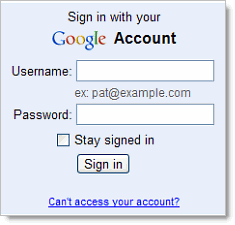
  1. Go to the sign-in page and enter your username and password like you normally do.

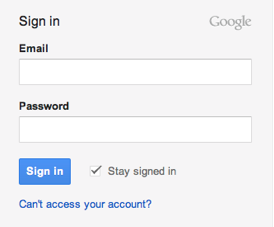
  2. Google's new sign-in page
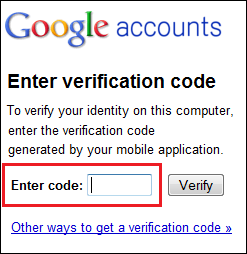
  3. Then you'll be asked for a six-digit code, which you'll get from your phone. If you want, when you enter your code, you can choose to trust your computer -- this means you won't be asked for a code again when you sign in from this computer. If you sign in from another computer, however, you'll be asked for a code.

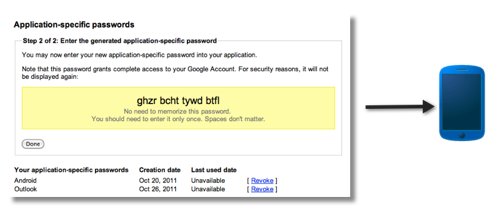
  4. After you turn on 2-step verification, non-browser applications and devices that use your Google Account (such as the Gmail app on your phone or Outlook), will be unable to connect to your account. However, in a few steps, you can generate a special password called application-specific password to allow this application to connect to your account -- and don't worry, you'll only have to do this once for each device or application.

  5. image of application-specific password to phone

--
--- m&k ---

2-step verification for your gmail account to be secure.

How it works

2-step verification adds an extra layer of security to your Google Account

In addition to your username and password, you'll enter a code that Google will send you via text, voice call, or our mobile app.


How it works

1Enter your password
Whenever you sign in to Google you'll enter your username and password as usual.
2Enter a code from your phone
Then, you'll be asked for a code that will be sent to you via text, voice call, or our mobile app.
Keep it simple
During sign in, you can tell us not to ask for a code again on that particular computer. You'll still be covered, because we'll ask for codes when you or anyone else tries to sign in to your account from other computers.


Why you should use 2-step verification

2-step verification drastically reduces the chances of having the personal information in your Google Account stolen by someone else. Why? Because bad guys would have to not only get your password and your username, they'd have to get a hold of your phone.

Set up 2-step verification to add another layer of security to your account.


Monday, 28 January 2013

Viswakarma viswanni srustinchindi viswakarma

విశ్వాన్ని సృష్టించింది విశ్వకర్మ. శ్లో నభూమి నజలం చైవ నతేజో నచ వాయవః నచబ్రహ్మ నచవిష్ణు నచనక్షత్ర తారకః సర్వశూన్య నిరాంబం స్వయంభూ విశ్వకర్మణః

తా భూమి – జలము – అగ్ని – వాయువు – ఆకాశము, బ్రహ్మ – విష్ణు – మహేశ్వర – ఇంద్ర –సూర్య – నక్షత్రంబులు లేని వేళ విశ్వకర్మ స్వయంభు రూపమైయుండెను.భూమి నీరు అగ్ని గాలి బ్రహ్మ విష్ణు రుద్రుడు నక్షత్రా లేమియు లేనపుడు విశ్వకర్మ భగవానుడు తనంత తాను సంకల్ప ప్రభావంచేత నవతరించాడు. ఆ స్వయంభూ విశ్వకర్మ పరమేశ్వరునకే విశ్వాత్ముడు, విశ్వేశ్వరుజు, సహస్ర శిర్షుడు! సగుణ బ్రహ్మం, అంగుష్ట మాత్రుడు, జగద్రక్షకుడు బ్రహ్మ విష్ణు మహేశ్వరుడు మొదలైన అనంతనామనులు – అనంతరూపములు కలిగినై. "ప్రజాపతి విశ్వకర్మ మనః "అని కృష్ణ యజుర్వేదమున విశ్వకర్మయే ప్రజాపతియైన బ్రహ్మయనియు చెప్పబడినది. ఆయనకు సద్యోజాత, వామదేవ, అఘోర, తత్పురుష, ఈశానము లనెడి నైదు ముఖలు. శ్లో పూర్వావనా త్సానగః దక్షణా త్సనాతనః అపరా దహభూవః ఉద్వీచ్యాం ఉర్ధవాత్సుపర్ణః తా తూర్పు ముఖమునందు సానగ ఋషి, దక్షిణ ముఖము నందు సనాతన ఋషి, పశ్చిమ ముఖము నందు అహభూన ఋషి, ఉత్తర ముఖము నందు బ్రత్న ఋషి, ఊర్ధ్వముఖము నందు సుపర్ణ ఋషులుద్బవించిరి.విశ్వకర్మ పరాత్పరుని యొక్క తూర్పు ముఖమైన సద్యోజాతము నందు సానగబ్రహ్మర్షి మకుబ్రహ్మయు, దక్షిణముఖమైన వసుదేవము నందు సనాతన మహర్షి యను మయబ్రహ్మయు, పశ్చిమముఖమైన అఘేరియునందు అహభూవ మహర్షి యను త్వష్టబ్రహ్మయు, ఉత్తరముఖమైన తత్పురుషము నందు ప్రత్న మహర్షి యను శిల్పి బ్రహ్మయు, ఊర్ధ్వముఖమైన ఈశానము నందు సువర్ణ మహర్షియను విశ్వజ్ఞబ్రహ్మయు ప్రభవించినట్లు చెప్పబడినై. ఋక్ వేదం లోని పదవ మండలం 81,82 సూక్తాలు విశ్వకర్మ యొక్క సృష్టి నిర్మాణ క్రమాన్నివివరిస్తాయి. అందరికీ సుపరిచితమైన పురుష సూక్తం కూడా విశ్వకర్మను విరాట్ పురుషునిగా వర్ణించింది. విశ్వకర్మకు పర్యాయ పదంగా త్వష్ట ను గుర్తిస్తారు.


విశ్వకర్మ సమారంభాం విశ్వరూపార్య మధ్యమాం

వీరబ్రహ్మేంద్ర పర్యంతాం వందే గురుపరంపరాం


విశ్వకర్మ పూజ

విశ్వకర్మ పూజ ప్రతి సంవత్సరం సెప్టెంబరు 17న జరుపుకుంటారు. ఇవి ముఖ్యంగా కర్మాగారాలు మరియు పారిశ్రామిక ప్రాంతాలలో తప్పకుండా జరుపుతారు. వారి పనిముట్లను విశ్వకర్మ ముందుంచి పూజిస్తారు.


--
--- m&k ---

Online Banking of State Bank of India

Know about Online Banking of State Bank of India.

The complete information online for you doubts !


Friday, 25 January 2013

Digital-art-by-adam-martinakis

Digital-art-by-adam-martinakis
Beautiful Collection of Adam you can download it for free.